
📑 Table of Contents
- What Is Amazon Brand Analytics and Who Gets Access?
- What Does the Search Query Performance Dashboard Show?
- What Do the 5 Key SQP Metrics Actually Mean?
- How Do You Read the SQP Funnel from Impressions to Purchases?
- What Are 5 Actionable Workflows Using SQP Data?
- Why Is Raw SQP Data Hard to Use on Its Own?
- What Are the Most Common Mistakes Sellers Make with Brand Analytics?
- Frequently Asked Questions About Amazon Brand Analytics Search Query Performance
- Conclusion
⚡ TL;DR
- Understand the Funnel: Learn how to read the progression from impressions to purchases to pinpoint exactly where shoppers abandon your listing.
- Prioritize by Purchase Share: Stop chasing vanity volume metrics and focus on keywords where you already win sales.
- Fix Low-Click Listings: Identify high-impression keywords with low click-through rates to target title and image optimizations.
- Target Competitor Queries: Spot when your product appears for competitor brand terms and launch conquest campaigns.
- Automate Analysis: Discover how tools like KPS and Annotations turn raw data rows into a prioritized action list.
Amazon gives brand-registered sellers the exact search queries shoppers type, the impressions those queries generate, and how many of those impressions turn into clicks, cart adds, and purchases. It is the most granular first-party keyword data available on any e-commerce platform. Yet roughly 90% of sellers who open the dashboard close it within minutes.
The Search Query Performance dashboard is not intuitive. It shows thousands of rows with metrics that sound similar (Search Query Score vs. Search Query Volume), two different views (Brand View vs. ASIN View), and no built-in way to prioritize which keywords deserve attention first. Sellers often stare at a 1,000-row spreadsheet, unsure whether to focus on the high-volume term with low conversion or the low-volume term with high conversion.
This guide breaks down every SQP metric in plain language, walks through the conversion funnel the data reveals, and provides 5 workflows sellers can run today to turn raw SQP data into listing and PPC improvements.
What Is Amazon Brand Analytics and Who Gets Access?
Amazon Brand Analytics is a free reporting suite inside Seller Central available exclusively to brand-registered sellers, providing first-party data on search behavior, demographics, and market basket analysis.
Brand Analytics is free. No additional subscription is needed beyond Brand Registry enrollment. Many sellers assume this level of data requires a paid add-on or premium account tier, but it is included as a core benefit of protecting a brand on Amazon.
Eligibility requires active enrollment in Amazon Brand Registry with a registered or pending trademark. Once enrolled, the reports become accessible to the brand owner account.
To find the report, navigate to Seller Central → Brands → Brand Analytics → Search Query Performance. While Brand Analytics includes other reports like Market Basket Analysis and Demographics, the Search Query Performance (SQP) report provides the deepest keyword-level funnel data, making it the primary tool for search optimization. For more details on the suite, see the Amazon Brand Analytics official page.
Knowing where to find the report is step one. The real challenge is understanding what each column actually means.
What Does the Search Query Performance Dashboard Show?
The SQP dashboard offers two views (Brand View for all brand queries and ASIN View for a single product) with weekly, monthly, or quarterly reporting periods.
Brand View vs. ASIN View: Brand View aggregates all search queries across the entire catalog, while ASIN View isolates queries for a single product. Use Brand View for high-level strategy and ASIN View for individual listing optimization. For example, Brand View shows all 847 queries driving traffic to a kitchenware brand, while ASIN View filters down to the 23 specific queries driving traffic to a single silicone spatula.
Reporting periods: Data is available in weekly, monthly, and quarterly segments. Weekly data is most actionable for real-time optimization, while quarterly data smooths out seasonal spikes. For most sellers, monthly reporting offers the best balance of data significance and timeliness.
Top 1,000 queries: The report caps at the top 1,000 search queries by relevance. This covers the vast majority of traffic for most brands, though some niche long-tail queries may not appear.
Columns available: The report provides a wealth of data points. Below is a breakdown of the key columns and their significance.
SQP Dashboard Columns Reference
|
Metric |
What It Measures |
Why It Matters |
|---|---|---|
|
Search Query Score |
Relative importance ranking (not volume) |
Tells you which queries matter most for YOUR brand |
|
Search Query Volume |
Approximate search count in the period |
Shows raw demand for a keyword |
|
Impressions (Total) |
Times any product appeared for this query |
Market size indicator |
|
Impressions (Brand Share %) |
Your brand’s share of total impressions |
Your visibility on this query |
|
Clicks (Total) |
Total clicks from this query |
Engagement indicator |
|
Clicks (Brand Share %) |
Your share of total clicks |
Click-through competitiveness |
|
Cart Adds (Brand Share %) |
Your share of cart additions |
Middle-funnel conversion signal |
|
Purchases (Brand Share %) |
Your share of purchases |
Bottom-funnel conversion signal |
The column names make sense on paper. But the relationships between these metrics (that’s where the real insight lives).
What Do the 5 Key SQP Metrics Actually Mean?
The five core metrics (Search Query Score, Search Volume, Impressions, Clicks, and Purchases) form a conversion funnel from discovery to transaction that reveals exactly where shoppers engage or drop off.
Search Query Score: This is not a volume number. It ranks how important a query is to YOUR brand relative to the overall marketplace. A score of 1 means it is the top query for the brand. Compare scores over time to spot trending terms that are becoming more critical to the business.
Search Query Volume: This represents the approximate number of times shoppers typed this exact query. Use with caution. Amazon rounds these numbers, and they fluctuate with seasonality. Volume alone is often a vanity metric; a high-volume keyword that drives no sales is less valuable than a lower-volume keyword that converts consistently.
Impressions + Brand Share: This measures how many times products appeared for a query and the brand’s percentage of those appearances. Low brand share on a high-volume query indicates an opportunity for growth. High brand share with low clicks suggests a problem with the title or main image. For the silicone spatula example, if the brand appears 5,000 times for “heat resistant spatula” but only captures 2% of impressions, there is significant room to improve visibility.
Clicks + Brand Share: This tracks how many shoppers clicked through to the detail page. The gap between impression share and click share reveals listing attractiveness. If impression share is 15% but click share is 5%, the main image or title isn’t compelling enough to win the click against competitors.
Cart Adds + Purchases + Brand Share: These metrics represent the bottom of the funnel. High clicks but low cart adds suggest issues with price, bullet points, or A+ content. High cart adds but low purchases suggest competitor comparison or availability problems. If shoppers add the spatula to their cart but don’t buy, they may be finding a cheaper option or faster shipping elsewhere.
Understanding individual metrics is useful. But the real power comes from reading the gaps between them.
How Do You Read the SQP Funnel from Impressions to Purchases?
Read the SQP funnel by comparing brand share at each stage (impressions, clicks, cart adds, purchases) to identify exactly where shoppers engage with or abandon a listing.
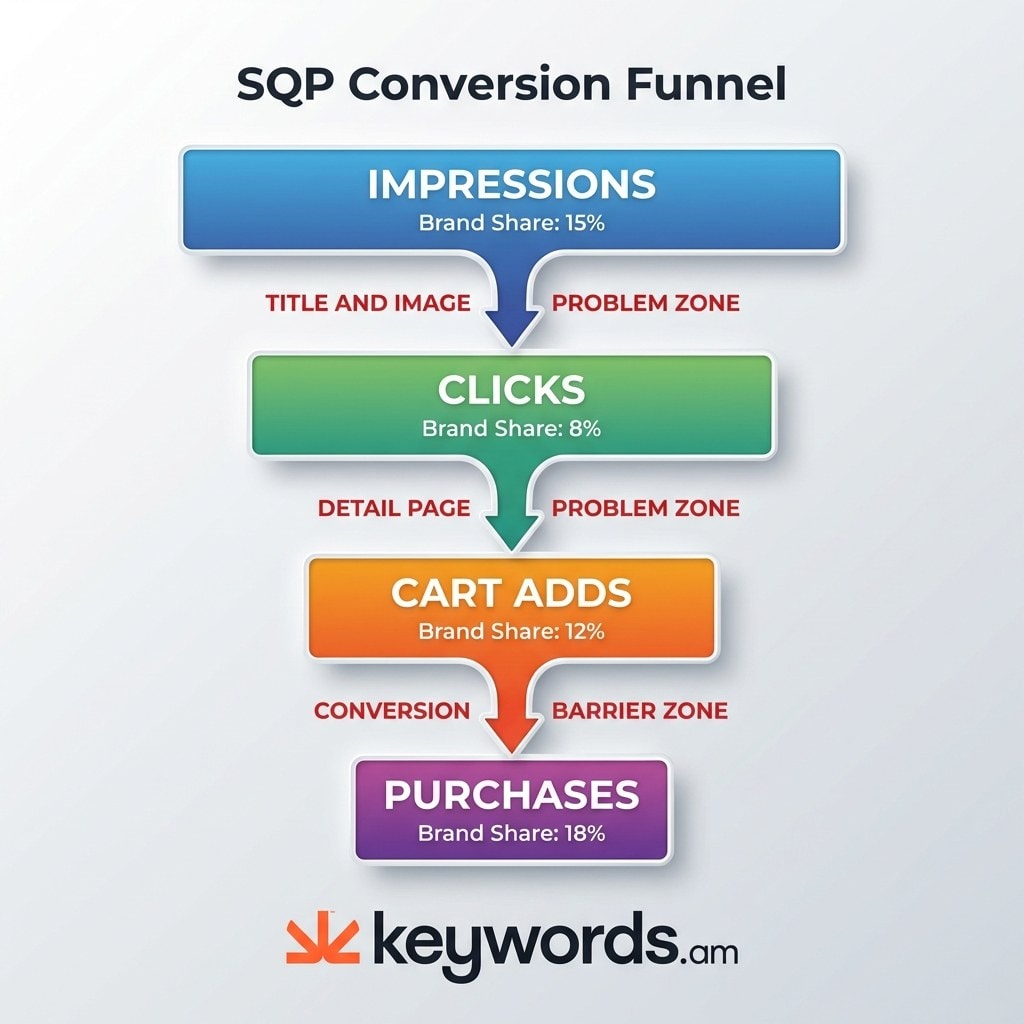
The funnel diagnostic framework: Compare brand share percentages across the four stages. Healthy listings maintain or grow their share at each stage. Problematic listings show sharp drops. Follow this three-step diagnostic:
- Compare Impression Share to Click Share: If you have 20% impression share but only 5% click share, you have a Title or Main Image Problem. Amazon is showing the listing, but shoppers aren’t interested. Fix this by revisiting title keyword placement, ensuring the main image stands out, and checking price visibility on the search results page.
- Compare Click Share to Cart Add Share: If you have 10% click share but only 2% cart add share, you have a Detail Page Problem. Shoppers are landing on the page but leaving without adding the item to their cart. Check bullet points, A+ content, reviews, and price competitiveness. Coverage indicators can reveal whether keyword coverage gaps in the bullet points are causing this drop-off.
- Compare Cart Add Share to Purchase Share: If you have 10% cart add share but only 3% purchase share, you have a Conversion Barrier. Shoppers want the product but something prevents the final transaction. This is often the hardest pattern to fix as it involves factors like delivery speed, competitor price matching, or stock availability.
Knowing how to read the funnel is the foundation. Now let’s turn that knowledge into specific workflows.
What Are 5 Actionable Workflows Using SQP Data?
Five practical workflows include discovering untargeted traffic keywords, fixing high-impression low-click terms, prioritizing PPC keywords by purchase share, spotting competitor queries, and benchmarking brand versus category performance.
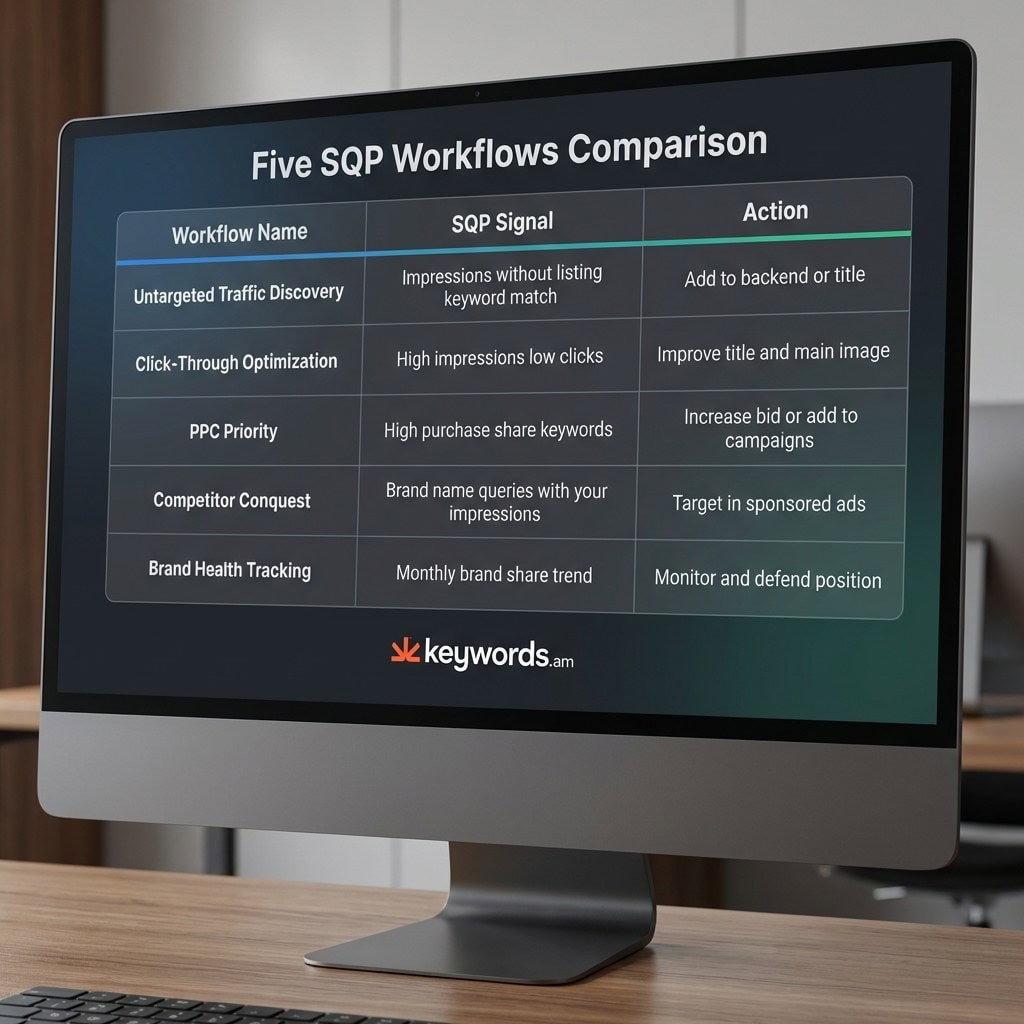
Workflow 1: Find keywords bringing traffic you don’t explicitly target.
Filter the ASIN View for queries with impressions but where the keyword doesn’t appear in the title, bullets, or backend keywords. These are organic ranking opportunities. If a product is ranking for a term without direct optimization, explicitly adding that term to the backend search terms can solidify that rank.
Workflow 2: Identify high-impression/low-click keywords for title optimization.
Sort by impression share descending, then look for queries where click share drops significantly. These listings are appearing in search results but failing to compel shoppers to click. This often indicates that the keyword is indexed, but the listing doesn’t look relevant for that specific search intent. See more on Amazon keyword indexing to understand how visibility works.
Workflow 3: Prioritize PPC keywords by purchase share.
Sort by purchase share to find queries that already convert organically. These are the safest PPC bets because they have proven purchase intent. Instead of guessing with high-volume keywords, double down on terms where the product is already winning.
Workflow 4: Spot competitor queries where your brand appears.
Look for queries containing competitor brand names where the brand has impression or click share. If “competitor brand spatula” shows impressions for your ASIN, shoppers are comparison shopping. This signals a conquest opportunity to target that competitor’s audience directly.
Workflow 5: Compare brand vs. category performance over time.
Track brand share percentages monthly. Rising brand share on steady-volume queries indicates organic growth. Falling brand share suggests competitive pressure requiring action. This aligns with a broader Amazon keyword research methodology focused on long-term market position.
These workflows are powerful, but they all share the same bottleneck: manual execution across thousands of rows of data.
Why Is Raw SQP Data Hard to Use on Its Own?
Raw SQP data lacks built-in prioritization, forcing sellers to manually sort thousands of keyword rows without knowing which ones deserve immediate action.
Data overload: The average brand sees 500-1,000 queries in the SQP report. Manually analyzing each one across the full funnel is time-consuming. Even at just two minutes per query, analyzing a 500-query report would take over 16 hours. Most sellers simply don’t have the time to do this regularly.
No prioritization layer: Amazon shows the data but doesn’t rank keywords by their potential impact on the listing. A query with 10,000 impressions and 2% brand share might matter less than one with 500 impressions and 40% brand share, but the report doesn’t tell you that. The lack of a clear “start here” signal leads to analysis paralysis.
KPS as the prioritization layer: The KPS feature (Keywords.am Priority Score) solves this by weighing demand, relevance, opportunity, and data trustworthiness to rank every SQP keyword on a 0-100 scale. A high KPS indicates a keyword that requires immediate focus, allowing sellers to skip the sorting and go straight to optimization.
Annotations translate patterns to actions: Instead of interpreting funnel gaps manually, Brand Analytics integration uses Annotations to flag patterns automatically. Tags like “Underexposed” identify where demand exists but visibility is lacking. “Shown but skipped” highlights impression-to-click gaps. “Clicks but confusion” points to cart abandonment issues.
With or without a tool, certain mistakes with Brand Analytics data are almost universal.
What Are the Most Common Mistakes Sellers Make with Brand Analytics?
The three most common mistakes are chasing high-volume keywords without checking purchase share, ignoring low-volume terms that drive actual sales, and failing to cross-reference SQP data with listing content.
Mistake 1: Over-indexing on search volume.
Sellers often sort by volume and optimize for the biggest numbers. However, a 50,000-volume keyword where purchase share is 0.1% matters far less than a 2,000-volume keyword where purchase share is 15%. Volume is noise without conversion context.
Mistake 2: Ignoring purchase-driving long-tail queries.
Queries with lower volume but high purchase share are gold. They represent shoppers with high intent who already buy from the brand. For example, “silicone spatula heat resistant 600 degrees” has lower volume than “spatula” but likely a much higher purchase share. Protecting these keywords is critical for maintaining profitability.
Mistake 3: Not cross-referencing SQP with listing content.
SQP tells you which keywords drive traffic, but it doesn’t tell you if your listing is optimized for them. If high-performing keywords don’t appear in the title, bullets, or backend search terms, the brand is leaving indexing to chance. Regularly cross-referencing SQP data with listing content ensures that the listing remains relevant to how shoppers are searching.
Frequently Asked Questions About Amazon Brand Analytics Search Query Performance
Below are answers to the most common questions sellers ask about the SQP report in Amazon Brand Analytics.
Conclusion
Amazon Brand Analytics Search Query Performance data is the most actionable first-party keyword resource when sellers read funnel gaps and prioritize by purchase share.
Amazon Brand Analytics SQP data is the most valuable first-party keyword data available to sellers, but only when paired with a systematic method for reading funnel gaps and prioritizing actions.
The SQP report reveals the complete search funnel (from query to purchase) for a brand’s keywords, allowing sellers to pinpoint exactly where shoppers drop off.
By reading the funnel and comparing brand share at each stage, sellers can identify whether they have a title problem, a detail page problem, or a conversion barrier. The five workflows outlined above turn this raw data into specific improvements for listings, PPC campaigns, and backend keywords.
Immediate Action: Open Seller Central, navigate to Brand Analytics, then Search Query Performance. Pull the last 30 days in ASIN View for the top-selling product. Sort by impressions, compare click share to impression share, and identify the 3 queries with the biggest gap. This 10-minute audit often reveals the lowest-hanging fruit for optimization.
For sellers ready to skip the spreadsheet and let a scoring system handle the prioritization, connect Brand Analytics in Keywords.am and let KPS surface what matters first.