
📑 Table of Contents
- What is the Amazon search term report and why does it matter?
- How do you download your Amazon search term report?
- What does every column in the Amazon search term report mean?
- How do you analyze search terms with the 4-bucket framework?
- How do you turn PPC search term data into higher organic rankings?
- Frequently Asked Questions About Amazon Search Term Reports
- Conclusion
⚡ TL;DR
- Search term report shows the exact customer queries that triggered your ads (different from the keywords you bid on).
- Download it at least every 30 days because Amazon only retains 60 days of data.
- 4-bucket framework: Winners (scale up), Potential (fix listing/bids), Money Pits (negate immediately), Low Data (wait for more clicks).
- 20+ clicks with zero orders is the threshold to negate a search term.
- Feed winning search terms into your listing through Title, Features, Search Terms, and Description for compounding organic and paid results.
- Search Term Report vs Brand Analytics SQP: STR shows ad-specific click and conversion data, while SQP shows organic and paid market share across all sellers.
Amazon sellers spend an average of $1.20 per click on Sponsored Products, yet most never systematically analyze where those clicks come from. The amazon search term report holds that answer.
Without a structured analysis framework, most sellers ignore the report entirely or cherry-pick obvious winners. They miss the 80% of data that could reshape their PPC and listing strategy.
This guide covers every column in the amazon search term report. It introduces a 4-bucket decision framework with specific numerical thresholds. Then it shows how to feed PPC data directly back into listing optimization through the TFSD framework.
What is the Amazon search term report and why does it matter?
The Amazon search term report shows the exact queries customers typed before clicking a Sponsored Products ad, revealing which search terms drive clicks, sales, and wasted spend.
The distinction between keywords and search terms confuses many sellers. Keywords are the concepts sellers bid on inside their campaigns. Search terms are the literal strings shoppers type into the search bar.
Here’s a concrete example. You bid on the keyword “stainless steel water bottle.” A customer searches “insulated water bottle 32 oz pink” and clicks your ad. The amazon search term report captures that exact query.
Understanding the value of the data
Here’s the problem: most sellers glance at their overall ACOS and call it a day. They don’t dig into individual search terms. But Jungle Scout’s State of the Seller report puts Sponsored Products at over 75% of all Amazon ad spend. That’s a lot of money flowing through a report most sellers barely open.
Skip this data, and you’re basically guessing what shoppers want instead of reading their exact words.
Amazon only retains this data for 60 days. Sellers who don’t download reports regularly lose historical performance data permanently. Downloading at least every 30 days prevents that data loss and builds a private database of historical market intelligence.
Different reports for different ad types
Sponsored Products, Sponsored Brands, and Sponsored Display each come with their own version of the search term report. The columns differ slightly between them, but don’t worry about all three right now. This guide zeroes in on Sponsored Products because that’s where most sellers see the bulk of their direct sales.
How do you download your Amazon search term report?
Download the search term report from Seller Central under Advertising > Sponsored Ads > Reports, selecting “Search term” as the report type with a date range under 60 days.
Pulling the data out of Amazon Seller Central isn’t hard, but the menus aren’t obvious either. Here’s the exact path: log into Seller Central, click Advertising in the main menu, then Sponsored Ads from the dropdown. Head to Measurement & Reporting, pick Reports, and hit the Create Report button.
Configuring the report parameters
Pick Search Term as the report type, then choose your time range. Daily format breaks metrics down by individual days, which is great if you want granular trends. Summary format rolls everything into one period, and honestly, that’s what most sellers should start with. It gives you cleaner totals that are easier to act on. Just make sure you keep the date range under 65 days so you don’t run into Amazon’s data retention wall.
Put a recurring reminder on your calendar: download every 30 days, no exceptions. Lose the habit, and you’ll lose data you can’t get back. Some sellers with dev resources use the Amazon Advertising API to automate the whole thing. But even a simple Google Calendar ping on the 1st of each month does the job.
Campaign specific details
Sponsored Products gives you the most detailed ASIN-level conversion data. Sponsored Brands adds headline search terms and shows how shoppers interact with your brand storefront. Sponsored Display leans more into audience and product targeting. For most sellers, Sponsored Products is where 80% of the analysis time goes.
What does every column in the Amazon search term report mean?
The search term report contains 14 columns covering impressions, clicks, spend, orders, and sales, but sellers should focus first on three signals: click-through rate, conversion rate, and ACOS.
Open the raw export and you’ll find thousands of rows staring back at you, spread across 14 columns. Most of those columns? Administrative noise. The three that actually matter will save you hours of guessing.
The complete column reference
Column Name |
What It Measures |
Signal Priority |
|---|---|---|
Campaign Name |
The overarching campaign structure |
Low |
Ad Group Name |
The specific ad group within the campaign |
Low |
Targeting |
The keyword or product targeted |
Low |
Match Type |
How broad or restrictive the targeting is |
Low |
Customer Search Term |
The exact phrase the shopper typed |
High |
Impressions |
How many times the ad appeared |
Medium |
Clicks |
How many times shoppers clicked the ad |
High |
CTR |
The percentage of impressions that got clicks |
High |
CPC |
The average cost paid per click |
Medium |
Spend |
Total money spent on this term |
Medium |
7-day Sales |
Total revenue generated within 7 days |
High |
7-day Orders |
Total number of units purchased within 7 days |
High |
7-day Conversion Rate |
The percentage of clicks resulting in orders |
High |
ACOS |
Advertising Cost of Sales (Spend divided by Sales) |
High |
Focusing on the critical signals
Three columns carry 90% of the weight when you’re making optimization calls. CTR tells you whether shoppers even care about the ad when it shows up. Conversion Rate tells you if they follow through and buy. And ACOS? That’s your profitability check, plain and simple.
You’ll notice a bunch of rows labeled “other” in the report. Amazon lumps low-volume search terms together when they don’t get enough impressions to report individually. Here’s the catch: those “other” rows can eat up 20% to 40% of your total spend. You can’t analyze what you can’t see, so making sure the visible terms are tightly managed becomes even more important.
The impact of match types
The match type column explains why a particular search term showed up for your keyword. Exact match means the query matched word-for-word. Phrase match means your keyword appeared inside a longer query, in the right order. Broad match? Anything goes, as long as the words appear somewhere. For a deeper dive, check this PPC keyword strategy breakdown.
How do you analyze search terms with the 4-bucket framework?
Sort every search term into four buckets based on click and conversion data: Winners to scale, Potential to fix, Money Pits to negate, and Low Data to revisit later.
Stop scrolling through rows wondering “should I keep this or kill it?” The 4-bucket framework gives you a number-based answer for every single search term. No more gut feelings, no more agonizing over edge cases. Sellers who follow this system tend to catch wasted spend weeks earlier than those who don’t.
Bucket 1: The Winners
These are your moneymakers. Any search term pulling in 5+ orders AND an ACOS below your target (typically 15-30%) belongs here. Bump the bid 10-20%, move it into an exact match campaign, and give it more room to run. Check the PPC optimization strategy guide for scaling these terms further.
Bucket 2: The Potential
Something’s off with these terms, and they’re worth fixing. Look for 100+ impressions with a CTR below 0.3% OR 10+ clicks with 0 orders. Low CTR usually means the main image or title isn’t grabbing attention. Low conversion? That points to pricing, bullet points, or reviews not closing the deal.
Bucket 3: The Money Pits
Kill these fast. Any term with 20+ clicks and 0 orders OR an ACOS above 3x your target is burning cash. Add it as a negative exact match today, not next week. Think: you’re selling an “insulated hiking flask” but paying for clicks on “water bottle.” That’s money lighting itself on fire. Build a proper negative keyword strategy so these don’t pile up.
Bucket 4: The Low Data
Don’t touch these yet. With fewer than 15-20 clicks, there just isn’t enough data to know whether a term converts or not. Negating too early is one of the most common mistakes sellers make. A term that looks dead after 8 clicks might turn into a winner after 30. Give it more budget or wait for the next download cycle before making a call.
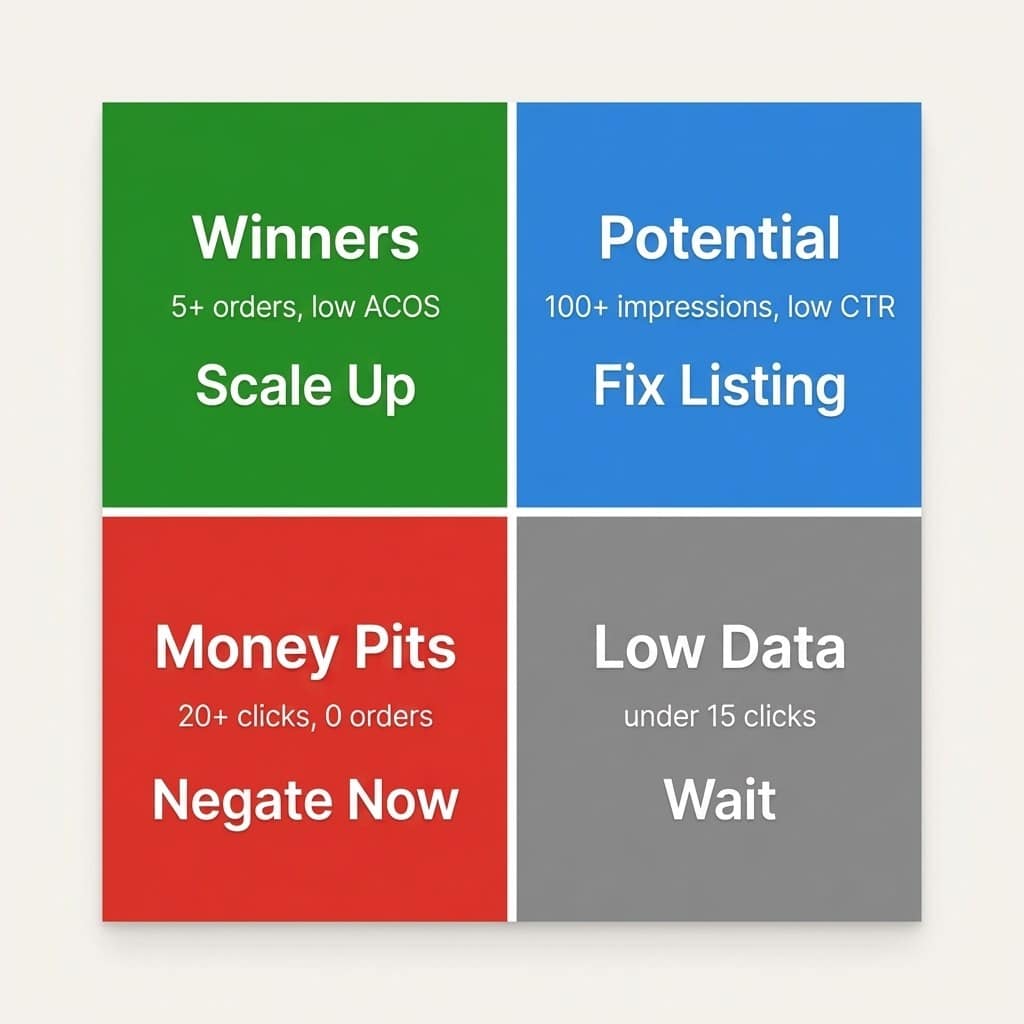
The complete 4-bucket decision matrix
Bucket |
Criteria |
Action |
Priority |
|---|---|---|---|
Winners |
5+ orders, ACOS below target |
Increase bids 10-20%, add to exact match |
High |
Potential |
100+ impressions (low CTR) OR 10+ clicks (0 orders) |
Fix listing images, title, price, or bullets |
Medium |
Money Pits |
20+ clicks with 0 orders OR ACOS > 3x target |
Add as negative exact match immediately |
High |
Low Data |
Under 15-20 clicks |
Wait for more data or increase budget |
Low |
One more thing: take the winners from auto campaigns and move them into exact or phrase match inside manual campaigns. This auto-to-manual harvest is how sellers build a controlled PPC campaign structure that keeps getting more profitable as data accumulates.
How do you turn PPC search term data into higher organic rankings?
Take winning search terms from the report and integrate them into your Title, Features, Search Terms, and Description fields so your listing ranks organically for terms already proven to convert through ads.
If a search term converts through paid ads, it’s already proven that real shoppers type it and buy from it. That makes it one of the strongest candidates for organic ranking too. Sellers who start ranking organically for these terms gradually spend less on PPC for the same sales. Over time, that compounding effect shrinks the blended acquisition cost noticeably.
Applying the TFSD framework
The TFSD placement strategy breaks this into four clear steps. Here’s where each winning search term should go:
- Place the top 3 to 5 converting terms directly into the Title.
- Weave secondary converting terms into the Features (bullet points).
- Catch the remaining long-tail winners in the Backend Search Terms.
- Reinforce key terms naturally throughout the product Description.
Keywords.am’s TFSD framework editor makes this process faster by showing which terms from the report already live in each listing field and which ones are missing. Instead of manually cross-referencing a spreadsheet with Seller Central, sellers can spot keyword gaps at a glance and fill them on the spot.
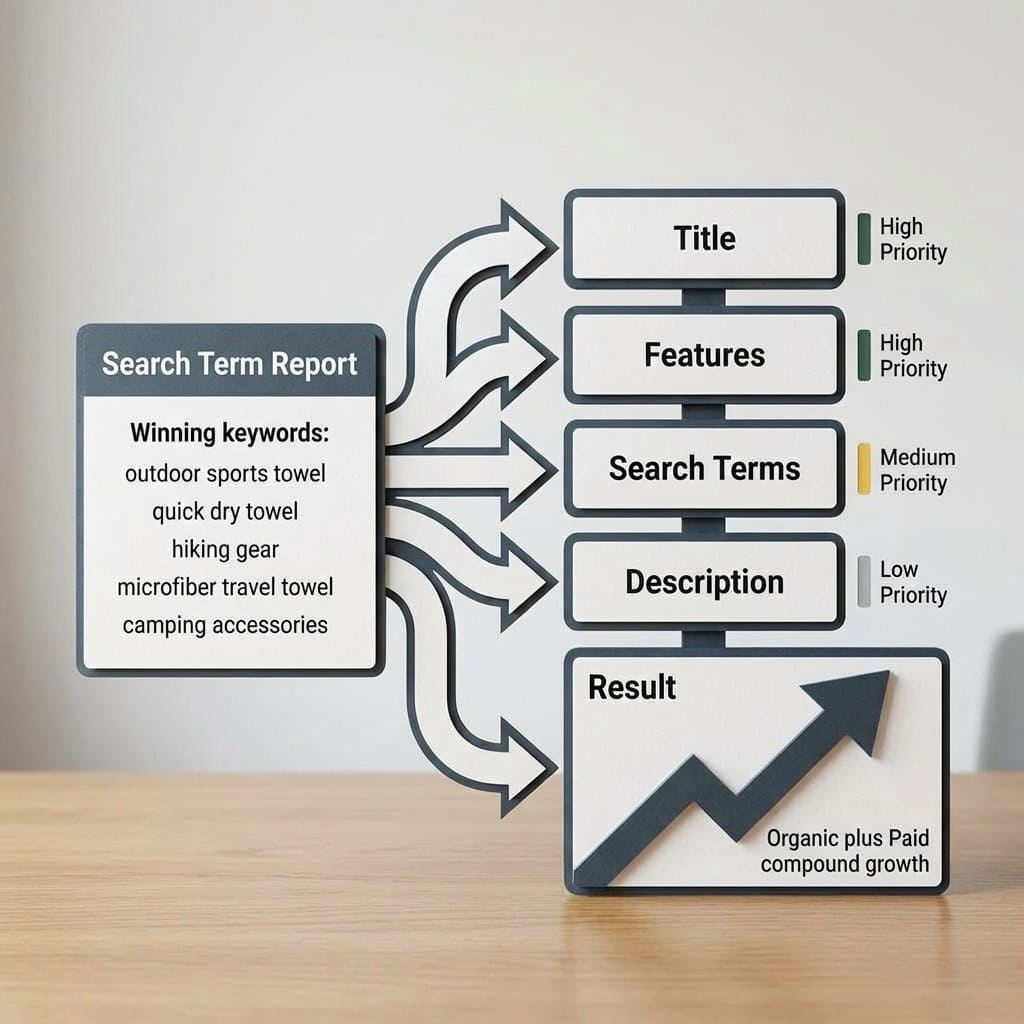
Optimizing the backend fields
The amazon search term report frequently surfaces converting long-tail phrases that sound awkward in titles. These terms might not fit naturally in the Title or Features without ruining readability. Add them to the backend fields while respecting the strict Amazon character limits. This strategy maximizes coverage and works as a strong keyword indexing foundation.
Comparing STR and SQP data
These two reports get mixed up constantly, but they answer different questions. The search term report is all about your ads: which queries triggered them, what you spent, and what converted. Brand Analytics SQP zooms out and shows organic plus paid market share across every seller competing for a given query. Use STR to optimize PPC and build negative keyword lists. Use Brand Analytics SQP to understand where you stand against the competition.
Frequently Asked Questions About Amazon Search Term Reports
These are the most common questions Amazon sellers ask about the search term report, covering data retention, download frequency, and optimization benchmarks.
Amazon retains search term data for approximately 60 days. Any data older than 60 days is permanently deleted and cannot be recovered.
Download the report at least every 30 days to maintain continuous historical data. Some sellers automate this through the Amazon Advertising API to ensure they never experience gaps in their historical performance metrics.
Check the search term report weekly for active campaigns and download a full export at least every 30 days to avoid losing data beyond the 60-day retention window.
Weekly checks catch money pit terms faster before they drain significant budget. Monthly full exports maintain a historical database for long-term trend analysis and seasonal performance comparisons.
A “good” ACOS depends on profit margins, but most Amazon sellers target 15-30% ACOS, with anything above 40% typically considered unprofitable for standard products.
Calculate your true target ACOS by subtracting product cost, FBA fees, and desired profit margin from the final sale price. Dive deeper into ACOS strategy with a structured PPC optimization approach to ensure sustainable scaling.
Amazon groups low-volume search terms into an “other” category when individual terms have very few impressions, making them too small to report individually.
“Other” rows can often represent 20% to 40% of total ad spend across broad campaigns. If the “other” bucket is unusually large, consider restructuring auto campaigns to surface more individual terms for analysis.
No. The search term report only shows queries that triggered paid ads. For organic search data, sellers need Brand Analytics Search Query Performance, available to brand-registered sellers.
Check organic and paid market share data using the Brand Analytics SQP guide to understand true competitive positioning.
Conclusion
The amazon search term report is, hands down, the most underused weapon in a seller’s PPC toolkit. But it only works if you’re analyzing it with a system, not just glancing at it when ACOS spikes. The 4-bucket framework turns a wall of data into four clear actions: scale, fix, negate, or wait.
And when you connect PPC data back to your listing through the TFSD approach, the benefits stack. Organic rankings improve for terms you’ve already proven convert. Paid costs go down as organic traffic picks up the slack. Miss a 30-day download window, though, and that data disappears for good.
Here’s what to do right now: pull the last 60 days of search term data. Sort by spend, highest first. Every term with 20+ clicks and zero orders gets negated today.
For sellers who want to take it a step further, Keywords.am’s TFSD editor shows exactly which winning search terms are already in the listing and which ones aren’t. It turns a spreadsheet exercise into a 15-minute workflow.