
📑 Table of Contents
- What is Amazon Seller Central (and why do most guides get it wrong)?
- How do you optimize Amazon listings in Seller Central for search visibility?
- What do Amazon search term reports tell you about your visibility?
- How does Brand Analytics help you find keywords customers actually use?
- What other Amazon Seller Central features affect whether customers find your product?
- Frequently Asked Questions About Amazon Seller Central
- Conclusion
⚡ TL;DR
- Focus on visibility: Only four Amazon Seller Central features directly control search ranking: listing optimization, search term reports, PPC advertising, and Brand Analytics.
- Master the fields: Product titles (200 bytes), bullet points (500 bytes each), and backend search terms (249 bytes) are the primary drivers of organic visibility.
- Use data, not guesses: Search Term Reports reveal the exact customer queries triggering your ads, allowing sellers to stop wasting budget on irrelevant clicks.
- Leverage Brand Analytics: Brand-registered sellers gain access to first-party search volume data, click share, and conversion share metrics that third-party tools can only estimate.
- Optimize conversion: A+ Content can lift sales by up to 20%, indirectly boosting search ranking by signaling higher relevance to Amazon’s algorithm.
- Automate wisely: Use auto campaigns for keyword discovery, then migrate high-performing terms to manual campaigns for precise control.
- Monitor health: Keep Order Defect Rate below 1% to prevent listing suppression, which instantly kills visibility regardless of optimization.
Amazon Seller Central has over 30 features, tabs, and dashboards. Most guides try to cover all of them. This one covers the four that determine whether customers actually find your product.
New sellers often spend weeks learning the Seller Central interface without understanding which features drive visibility. They optimize inventory management and master the art of printing shipping labels, yet they cannot get a single impression. While operational efficiency matters, it does not generate sales.
This guide covers only the Amazon Seller Central features that directly impact search visibility: listing optimization fields, search term reports, PPC campaign setup, and Brand Analytics. Together, these form the visibility stack, the critical components that separate sellers who get found from those who remain invisible.
Unlike the 8,000-word encyclopedia guides that treat every button equally, this article focuses entirely on discoverability.
What is Amazon Seller Central (and why do most guides get it wrong)?
Amazon Seller Central is the dashboard where third-party sellers manage listings, inventory, advertising, and analytics, but only four of its features directly control product visibility.
Seller Central is the backend for all third-party Amazon sellers, including both Individual and Professional accounts. Over 2 million active sellers use it to conduct business on the platform, accounting for more than 60% of all units sold on Amazon. The dashboard is vast, featuring over 30 distinct tools across tabs for Inventory, Pricing, Orders, Advertising, Reports, and Performance. Most guides attempt to explain every single feature, leaving new sellers overwhelmed and unsure where to focus their limited time.
This approach is fundamentally flawed for anyone whose primary goal is growth. While sellers need to know how to manage a return or check a payment balance, those tasks are maintenance. They do not drive revenue. The features that drive revenue are the ones that put a product in front of customers.
This guide focuses exclusively on listing optimization, search term reports, PPC advertising, and Brand Analytics. These four pillars constitute the visibility stack. Sellers who master these can ignore much of the rest of the platform until they have consistent sales volume.
In 2026, Amazon introduced customizable dashboards, Profit Analytics, and Custom Analytics tools to help sellers visualize data more effectively. While these updates improve the user experience for operations, the core mechanics of ranking have not changed. The visibility stack remains where ranking decisions happen.
How do you optimize Amazon listings in Seller Central for search visibility?
Listing optimization in Amazon Seller Central means writing keyword-rich titles, bullet points, descriptions, and backend search terms that the algorithm uses to index and rank products.
The foundation of visibility is the product listing. Before spending a dollar on advertising, sellers must ensure their listing is structured for search. Amazon’s A9 algorithm relies on specific text fields to determine what a product is and when to show it.
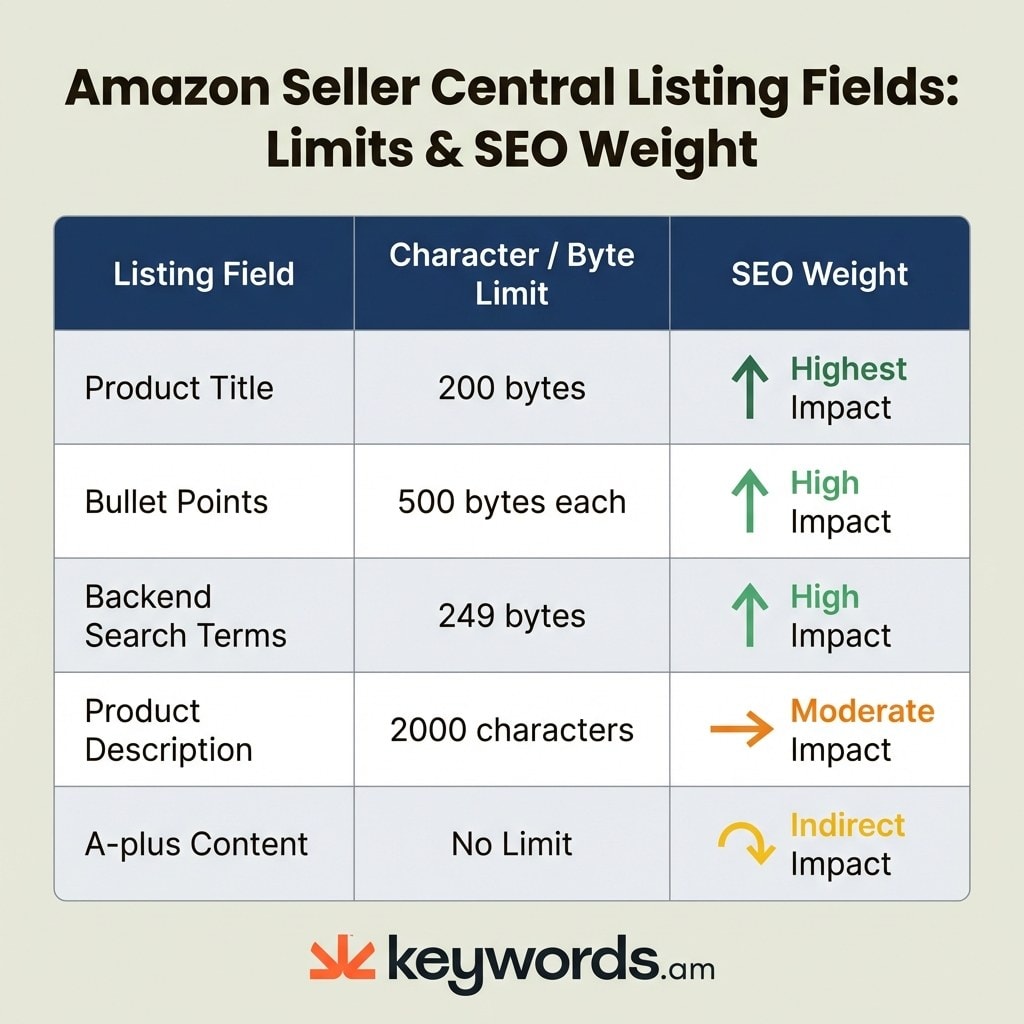
Product Title: This is the most critical field for ranking. Sellers have up to 200 bytes (not characters) to tell Amazon exactly what they are selling. Front-load the primary keyword, meaning it should appear within the first few words. Include brand name, key features, material, size, quantity, and color. Avoid fluff and marketing jargon. If the algorithm cannot find relevant keywords here, the product will struggle to rank for anything. For a detailed breakdown of formatting rules, review the guide on Amazon character limits.
Bullet Points (Key Features): The platform provides five bullet points, with a limit of 500 bytes each. This is prime real estate for secondary keywords and long-tail phrases. Each bullet should target a distinct keyword cluster or benefit. For example, a yoga mat listing might use one bullet focused on “durability and thickness” and another on “non-slip texture.” This approach ensures coverage of multiple search angles without keyword stuffing. Read more about structuring these in the Amazon bullet points guide.
Backend Search Terms: This is the hidden power of any Amazon listing. Seller Central provides a specific field in the “Search Keywords” tab for terms that do not fit naturally in visible content. The limit is exactly 249 bytes. Do not repeat words from the title or bullets; the algorithm already knows those. Instead, use this space for synonyms, alternate spellings, common misspellings, and Spanish translations. Many sellers leave this blank, missing a major opportunity for free visibility. Learn how to maximize this space in the Amazon backend keywords guide.
Product Description: While less weighted than the title or bullets, the description (up to 2,000 characters) still contributes to indexing. For brand-registered sellers, this is often replaced by A+ Content, but the text description remains in the backend code and is indexed. Keep it brief, reiterate key benefits, and include keywords that did not fit elsewhere.
Keyword Research Integration: Optimizing these fields requires knowing which keywords to use. Guessing is a strategy for failure. A tool like Keywords.am runs reverse ASIN lookups to reveal exactly which keywords competitors are ranking for. It then generates relevance-scored keyword lists specifically for each listing field, ensuring sellers target terms with proven search volume. This data-driven approach fills the gaps that native Seller Central tools leave open. For a step-by-step process, see the Amazon keyword research methodology.
Seller Central Listing Fields and SEO Weight
Listing Field |
Byte/Character Limit |
SEO Impact |
|---|---|---|
Product Title |
200 bytes |
Highest: primary ranking factor |
Bullet Points |
500 bytes each (5 bullets) |
High: indexed for search |
Backend Search Terms |
249 bytes |
High: invisible keywords |
Product Description |
2,000 characters |
Moderate: supplements indexing |
A+ Content |
No character limit |
Indirect: boosts conversion, not indexing |
What do Amazon search term reports tell you about your visibility?
Amazon search term reports show the exact customer queries that triggered ads, revealing which keywords drive traffic and which waste budget on irrelevant clicks.
Many new sellers launch PPC campaigns and never look at the data again. They assume that because they bid on “running shoes,” their ads only appear for that exact phrase. In reality, Amazon’s algorithm matches ads to a wide range of loosely related terms. The Search Term Report is the only way to see what customers are actually typing into the search bar.
To access this report in Amazon Seller Central, navigate to Reports > Advertising Reports > Search Term Report. Select a date range of up to 65 days and download the data as a CSV file. This file contains the raw truth about product visibility. It shows impressions (how many times an ad was seen), clicks, spend, sales, and ACoS (Advertising Cost of Sales) for every single search query.
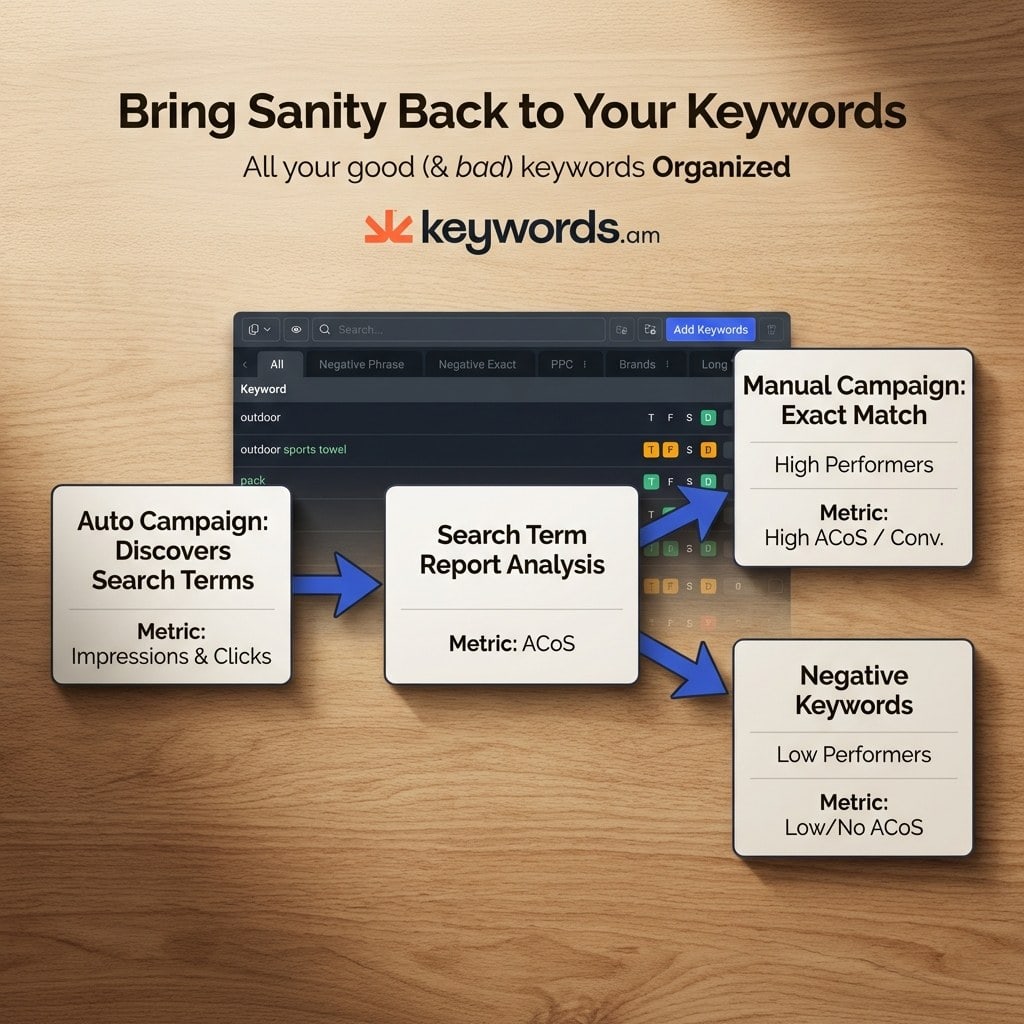
The primary use of this report is keyword harvesting. Sellers will likely find search terms that are generating sales but that they are not explicitly targeting. For example, a seller bidding on “coffee mug” might discover that “ceramic travel coffee mug” is driving most conversions. Take these high-performing terms and move them into manual campaigns where bid and budget can be controlled more precisely. This process moves advertising from paying for discovery to paying for performance.
The second use is negative keyword mining. Sellers will also see terms that have high spend but zero sales. These are budget vampires. If an ad for “glass water bottles” is showing up for “plastic water bottles,” the seller is paying for clicks from customers who will never buy that product. Adding “plastic” as a negative keyword tells Amazon to stop showing the ad for that query, immediately improving campaign efficiency.
For new campaigns, sellers should check this report weekly. The first 30 days are critical for filtering out bad traffic. Once a campaign is mature, checking every two weeks is usually sufficient. For a deeper dive into managing this workflow, refer to the Amazon PPC keyword strategy.
How does Brand Analytics help you find keywords customers actually use?
Brand Analytics provides first-party Amazon search data including query volume, click share, and conversion share, letting brand-registered sellers see exactly which searches drive sales.
Brand-registered sellers have access to one of the most valuable tools in Amazon Seller Central. Navigate to Brands > Brand Analytics > Search Analytics to open the dashboard. Unlike third-party tools that estimate search volume based on algorithms and clickstream data, Brand Analytics shows actual data from Amazon’s database.
The Search Query Performance dashboard is the centerpiece of this tool. It displays the top 1,000 queries that led customers to a brand’s detail pages. It includes the Search Query Score, which ranks terms by their revenue impact rather than just raw volume, and the Search Query Volume, which is the exact number of times a term was searched in a given period. This eliminates the guesswork regarding how popular a keyword really is.
Beyond volume, the dashboard reveals click share and conversion share. This is competitive intelligence at its most useful. Click share tells sellers what percentage of the total clicks for a search term went to their product. If a keyword has 10,000 searches and click share is only 1%, there is a visibility problem (likely the main image or title is not compelling enough). If click share is high but conversion share is low, there is a listing problem (customers are clicking, but the price or reviews are turning them away).
Another valuable feature is Market Basket Analysis, which shows what other products customers are purchasing alongside a given product. This can reveal opportunities for bundling or cross-selling.
The most practical application of Brand Analytics is to identify high-volume keywords where a brand has low market share. These are the growth opportunities. By optimizing listings and PPC campaigns around these specific terms, sellers can systematically increase visibility inside Amazon Seller Central. Learn more about interpreting these metrics in the Amazon Brand Analytics search query performance guide.
What other Amazon Seller Central features affect whether customers find your product?
Beyond listing keywords, PPC campaigns drive initial visibility, A+ Content lifts conversion rates by up to 20%, and account health metrics determine whether listings stay active.
While listings and reports are the foundation, several other Seller Central features act as force multipliers for visibility. Ignoring them can cap potential or, in the case of account health, destroy it entirely.
PPC Campaigns (Sponsored Products): Advertising is not just about immediate sales; it is a ranking tool. Sales velocity is a major factor in Amazon’s organic ranking algorithm. A standard strategy is to start with an automatic campaign with a budget of $10-20 per day. This allows Amazon’s algorithm to test a product against various search terms. As sellers identify winners via the Search Term Report, they migrate them to manual campaigns with exact match targeting. This cyclical process constantly refines visibility. For a full breakdown, see the Amazon PPC keyword strategy guide.
A+ Content: Formerly known as Enhanced Brand Content (EBC), this feature allows brand-registered sellers to replace the standard text description with rich images, comparison charts, and brand storytelling. According to Amazon’s own data, basic A+ Content can increase sales by up to 8%, while Premium A+ Content can drive a lift of up to 20%. Higher conversion rates signal to Amazon that a product is relevant, which indirectly boosts organic search ranking. For layout strategies, see the guide to Amazon A+ content optimization.
A/B Testing (Manage Your Experiments): Another benefit for brand-registered sellers is the ability to run split tests on titles, main images, and A+ Content. Sellers can set up an experiment where 50% of traffic sees version A and 50% sees version B. Over 4-10 weeks, Amazon reports which version generates more sales. This scientific approach to optimization is far superior to relying on gut instinct. See the Amazon A/B testing guide for details.
Automated Pricing Rules: The “Buy Box” is the white box on the right side of the product page where customers click “Add to Cart.” Without winning the Buy Box, visibility is effectively zero. The Automate Pricing tool in Seller Central helps adjust prices in real-time to remain competitive, which is essential for resellers competing on the same ASIN.
Account Health: Finally, visibility is conditional on performance metrics. If the Order Defect Rate exceeds 1% or the Late Shipment Rate goes above 4%, Amazon may suppress listings or suspend the account. These metrics are the floor of the visibility stack; if they crumble, everything else collapses.
Frequently Asked Questions About Amazon Seller Central
These are the most common questions new and intermediate sellers ask about Amazon Seller Central.
Conclusion
Amazon Seller Central is often viewed as an administrative burden, a place to print labels and answer customer messages. For top-performing sellers, it is a precision instrument for growth. By shifting focus from operations to the visibility stack, sellers change the trajectory of their business.
- Listings: Optimize the title, bullets, and backend terms for the algorithm.
- Reports: Mine search term reports to stop wasting money and start doubling down on winners.
- Analytics: Use Brand Analytics to see what is actually happening in the market.
- Expansion: Leverage PPC and A+ Content to accelerate organic ranking.
The difference between a product that stagnates and one that scales often comes down to data. Take ten minutes today to audit a top-selling product against the listing fields table above. Check if the backend search terms are filled or empty. The listings that rank consistently did not get there by accident; they started with better keyword research. For a complete framework on how to find these opportunities, explore the Keywords.am keyword research methodology.